IPTV Channel Switching Too Slow? How to Cut Zapping Delay and Load Channels Instantly (2026)
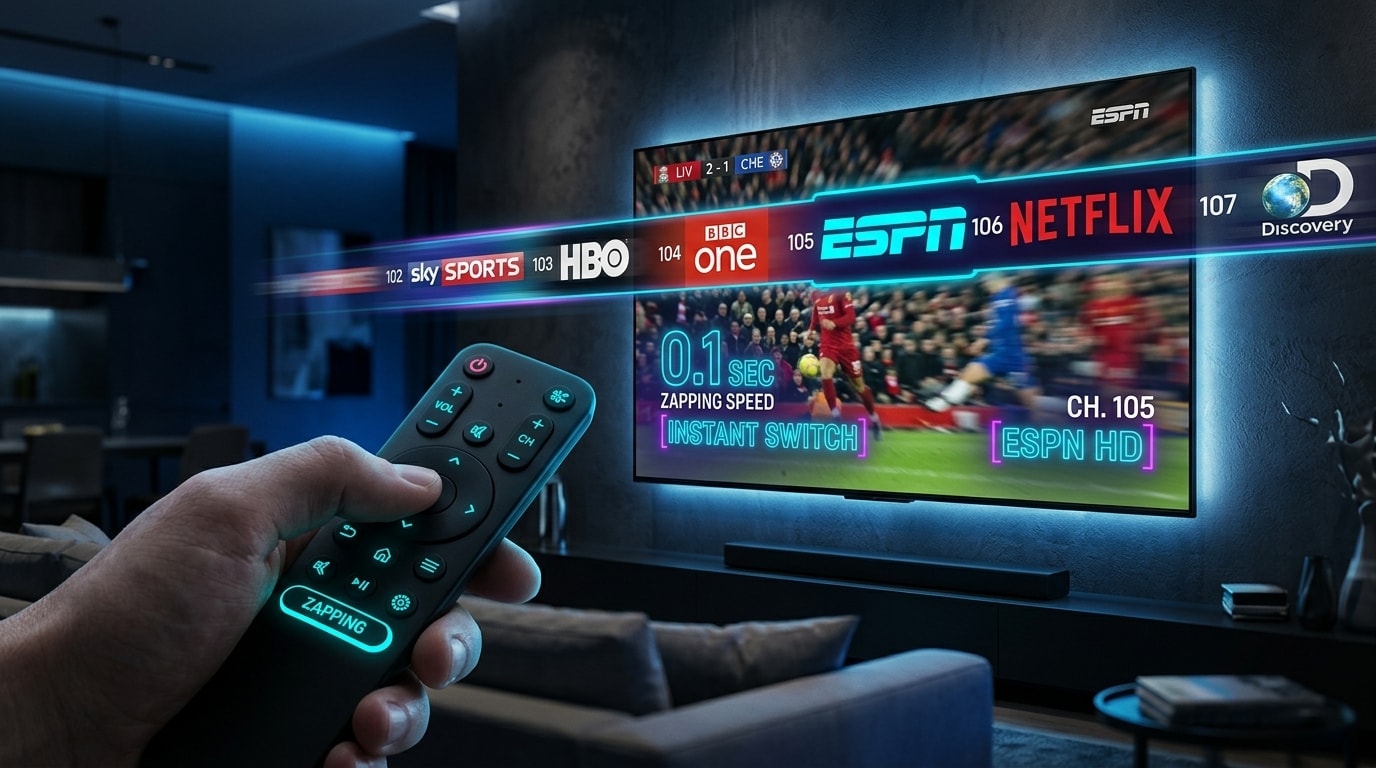
When you switch channels on traditional digital cable or satellite television, the transition feels virtually instantaneous. You press a channel up or down button on your remote control, and within a fraction of a second, the next broadcast appears on your television screen. However, when streaming live television over the internet using Internet Protocol Television (IPTV), changing from one live stream to another often introduces a noticeable pause. You click a channel, and instead of immediate playback, you are met with a dark screen, a spinning loading indicator, or a brief frozen frame while the stream initializes.
For many viewers, experiencing an IPTV channel switching slow response can be intensely frustrating—especially when surfing live sports, checking breaking news broadcasts, or flipping through channel lineups during commercial breaks. When IPTV channels take too long to load, it is easy to assume that your entire broadband connection is failing or that your streaming provider is experiencing server overload.
However, live IPTV channel zapping latency is governed by a distinct set of digital network and decoding mechanisms that are fundamentally different from traditional broadcast cable television and static video-on-demand playback.
In this comprehensive technical manual, we break down why IPTV channel switching delay occurs, examine the exact digital handshake sequence that executes under the hood during every channel change, clarify the crucial technical distinction between channel startup latency and mid-playback buffering, and provide an actionable diagnostic framework and eleven proven solutions to achieve sub-second channel zapping across Smart TVs, Amazon Firesticks, and Android TV devices using Trimix IPTV and our dedicated subscription plans.
What Is IPTV Channel Switching Delay (Channel Zapping Latency)?
To understand why an IPTV channel change delay happens, it helps to examine what occurs behind the scenes when you request a new channel. Unlike traditional cable television—where every available channel is continuously broadcast over physical copper coaxial cables simultaneously and your set-top box simply tunes into a different radio frequency—IPTV delivers live video on demand over standard internet protocol suites.
When you tune into a channel on an IPTV player, your device does not simply switch a physical tuner frequency. Instead, it must execute a multi-step digital handshake across your local network, your ISP routing nodes, and the provider streaming infrastructure.
In streaming technical terms, channel zapping delay (also referred to as channel startup latency or first-frame rendering time) represents the exact duration measured from the moment you select a new channel on your remote until the video decoder renders the first synchronized, playable video frame on your screen.
The Channel Switching Sequence Under the Hood
Every time you change channels inside an IPTV application, your setup executes the following nine-step technical sequence:
- Stream Termination: The IPTV player commands the active media engine to stop receiving, decoding, and rendering the current live video stream.
- Resource Deallocation: The application clears active hardware video decoders, closes open network sockets, and flushes temporary memory buffers associated with the previous channel.
- URL & Transport Request: The player queries your playlist metadata, resolves the target channel's media URL (via M3U structure or Xtream Codes API endpoint), and dispatches an HTTP request to establish a new connection.
- Network Connection & Handshake: Your device negotiates a network handshake with the streaming server, establishing a stable TCP or UDP session.
- Data Packet Reception: Live Transport Stream (TS) or HTTP Live Streaming (HLS) media chunks begin arriving across your local network router and Wi-Fi interface.
- Pre-Roll Buffer Filling: Before starting video playback, the IPTV player must receive and buffer a minimum amount of video data (pre-buffer) to ensure steady playback.
- Codec Initialization & Keyframe Parsing: The video decoder (hardware or software) initializes, identifies the video codec format (such as H.264 AVC or H.265 HEVC), and waits for the first complete video keyframe (I-frame) to begin decoding.
- Audio/Video Synchronization: The media engine aligns the audio timestamp with the video timestamp to ensure lip-sync accuracy.
- First Usable Frame Displayed: The decoded video frame is rendered onto your display panel, and continuous live playback commences.
Because every single step in this sequence requires processing time and data exchange, a brief baseline startup delay is an inherent characteristic of packet-based live streaming. However, when these individual steps encounter network bottlenecks, unoptimized player settings, or hardware limitations, a normal 1-second channel change can balloon into an annoying 5- to 10-second delay.
9 Critical Causes of Slow IPTV Channel Loading
If you notice that IPTV channels take too long to load, the delay is rarely caused by a single isolated factor. Instead, it is usually the cumulative result of network responsiveness, device processing speed, app configurations, and stream delivery parameters:
1. Waiting for the Mandatory Video Keyframe (GOP Interval)
Unlike browsing static web pages where content is downloaded as fixed files, live IPTV streams are continuous, real-time media feeds. When you request a new channel, the IPTV player cannot instantly display arbitrary video bytes. It must wait until the incoming stream delivers an IDR Keyframe (Instantaneous Decoder Refresh frame).
Video compression relies on sending full reference pictures (I-frames) followed by smaller delta frames (P-frames and B-frames) containing only changes between images. If your player connects to a stream right after a keyframe has passed, it must buffer incoming data until the next full keyframe arrives. Depending on how the live encoder is configured, keyframe intervals can range from 1 to 4 seconds. Long keyframe intervals naturally produce longer startup delays while waiting for that mandatory reference picture.
2. Network Latency (Ping) and Jitter Over Bandwidth
Many users believe that having a high download speed (such as 300 Mbps or 1 Gbps) guarantees instant channel zapping. However, when it comes to stream initialization, network latency (ping) and jitter play a far more critical role than raw bandwidth.
Bandwidth determines how much data can pass through your pipe per second, but latency dictates how fast a single packet request travels from your device to the streaming endpoint and back. High ping times delay initial HTTP handshakes, packet loss forces retransmissions, and unstable Wi-Fi adds half a second or more to every request cycle before video bytes even start moving. To understand how latency impacts your connection, review our guide on IPTV internet speed requirements.
3. Wi-Fi Packet Queuing and Radio Interference
Wireless connections are inherently susceptible to environmental interference, signal attenuation through walls, and radio frequency congestion:
- 2.4 GHz Congestion: The 2.4 GHz spectrum is heavily crowded by neighboring Wi-Fi networks and household electronics, introducing packet queuing delays during initial stream requests.
- Signal Strength Drops: Weak Wi-Fi signal forces the wireless card to drop connection negotiation speeds, extending the time required to receive initial stream buffers.
- Distance from Router: Physical obstacles introduce latency spikes that directly impact channel startup responsiveness.
While Wi-Fi may provide adequate bandwidth for ongoing playback once stabilized, latency spikes during channel changes directly contribute to a slow IPTV channel change.
4. Player Pre-Buffer Sizing (The Latency Trade-Off)
Not all IPTV player applications manage stream initialization in the same manner. Different players utilize distinct media engines (such as ExoPlayer, VLC media framework, or proprietary native decoders) and different default buffer management strategies.
Certain applications prioritize aggressive pre-buffering—demanding that 3 to 5 seconds of stream data accumulate in memory before rendering the first video frame. While this protects against subsequent buffering during unstable network conditions, it penalizes channel zapping speed. Conversely, lightweight players optimized for rapid zapping start playback on a smaller initial buffer, delivering faster first-frame response times.
5. Massive Unpruned Playlists Overloading Device RAM
If your IPTV subscription includes tens of thousands of live channels, extensive VOD libraries, and multi-day Electronic Program Guides (EPG), loading that metadata into memory can tax app performance.
It is important to distinguish between slow channel list browsing and slow individual channel switching:
- Channel List Browsing Delay: Occurs when the user interface stutters while scrolling through categories or searching for titles because device RAM is overloaded with EPG metadata.
- Channel Switching Delay: Occurs after a channel is clicked, while the media engine connects to and buffers the specific video URL.
However, if an IPTV app is struggling under an unpruned 100,000-item playlist, system memory pressure can slow internal app logic, compounding connection delays.
6. Streaming Hardware Processor Limitations
The hardware capabilities of your streaming device directly influence how quickly video streams can be decoded and initialized:
- Entry-Level Smart TVs: Built-in TV processors in low-end Smart TVs feature limited RAM (1GB to 1.5GB) and modest multi-core CPUs designed primarily for basic menu rendering rather than high-performance media handling.
- Legacy Streaming Sticks: Older Amazon Fire TV Sticks or early Android dongles have constrained hardware decoders that take longer to parse incoming video headers.
- Background RAM Pressure: Running multiple background applications leaves less available system memory for your IPTV player's video buffer.
7. 4K Ultra HD and High-Bitrate Stream Overhead
Higher resolution feeds naturally carry significantly higher data densities:
- A standard definition (SD) or 720p HD stream may stream at 2.5 to 4 Mbps.
- A high-frame-rate 1080p 60FPS stream typically requires 8 to 12 Mbps.
- A true 4K Ultra HD live stream can require 20 to 35+ Mbps with 10-bit HDR color depth.
Because 4K streams transmit larger data chunks per second, your device's network buffer requires more raw bytes to fill the initial pre-roll buffer. Furthermore, high-bitrate H.265/HEVC decoding places greater demands on your device's graphics processor during initialization. Consequently, switching to a 4K sports channel may naturally take 0.5 to 1.5 seconds longer than switching to a standard HD channel.
8. Software Decoding vs. Hardware Acceleration
IPTV video streams are encoded using compression standards such as H.264 (AVC) or H.265 (HEVC). Modern streaming devices contain dedicated hardware chips specifically designed to decode these formats efficiently.
If your IPTV player is configured to use Software Decoding (SW) instead of Hardware Decoding (HW), video parsing is offloaded to the main CPU rather than dedicated media hardware. Software decoding consumes vastly more CPU cycles, increases thermal throttling risk, and noticeably delays first-frame rendering.
9. Stream-Specific Upstream Delays
If you notice that nine out of ten channels load in under 1.5 seconds, but one specific channel consistently takes 6 to 8 seconds to start, the issue is almost certainly isolated to that specific channel's source stream rather than your local network or device. Channel-specific startup delays occur when the source encoder for that channel uses an unusually long keyframe interval or the upstream relay server is geographically distant or overloaded.
Technical Deep Dive: The Anatomy of a Channel Zap
To understand why some IPTV setups switch channels in under one second while others take seven to ten seconds, we must look at the protocol handshakes that occur during every channel change:
1. The Stream Protocol: MPEG-TS vs. HLS (HTTP Live Streaming)
How the media server packages and delivers digital video directly impacts zapping latency:
- MPEG-TS (Transport Stream): In an MPEG-TS connection, the video and audio packets flow in a continuous, uninterrupted digital stream. When your player connects to the server port, video data begins downloading instantly. High-performance IPTV setups utilize MPEG-TS to achieve ultra-fast 1.0 to 1.8 second zapping speeds.
- HLS (.m3u8 Segments): In HTTP Live Streaming, video is sliced into discrete chunk files (typically 2 to 6 seconds per segment). When you change channels, the media player must first download the
.m3u8index playlist, request the latest complete chunk file, wait for the entire multi-megabyte chunk to download over HTTP, and then initialize the decoder. HLS adds an unavoidable 3 to 6 seconds of baseline latency to every channel change.
2. The GOP (Group of Pictures) Keyframe Wait Time
Digital video compression relies on I-Frames (Intra-coded keyframes), which contain a complete, standalone visual image, followed by P-Frames and B-Frames, which only record visual changes between frames:
- The Rule of Decoding: A hardware video decoder cannot display a picture until it encounters a fresh I-Frame keyframe. It cannot reconstruct a video frame from intermediate P or B frames.
- The Keyframe Interval: Broadcast encoders inject I-Frames at fixed intervals (typically once every 1.0 to 3.0 seconds). If you switch to a channel milliseconds after an I-Frame has passed, your media player must discard all incoming data and wait for the subsequent I-Frame to arrive before rendering video on your screen. This creates a natural, hardware-level variable delay of 500ms to 2500ms.
3. DNS Lookup and TLS Handshake Latency
Every time you switch between channels hosted across different edge distribution nodes, your media player performs:
- DNS Resolution: Translating the domain name into an IP address. Slow ISP DNS servers can add 150ms to 400ms to every channel zap. Switching your router to Cloudflare (1.1.1.1) or Google (8.8.8.8) cuts DNS resolution time to under 15ms.
- TLS / SSL Handshake: Establishing an encrypted HTTPS tunnel. Premium streaming clients cache TLS session tickets to reuse established handshakes, avoiding cryptographic connection delays.
Slow Channel Switching vs. IPTV Buffering: The Key Distinction
One of the most common points of confusion among live television viewers is confusing channel switching latency with active playback buffering. While both issues involve waiting for video data, they are technically distinct phenomena with different root causes and solutions.
| Diagnostic Metric | IPTV Channel Switching Delay | IPTV Mid-Playback Buffering |
|---|---|---|
| When It Occurs | Immediately upon selecting a new channel | Minutes or hours into an active broadcast |
| Primary Symptom | Dark screen or loading icon during startup | Sudden freeze, spinning wheel, or audio loop |
| Core Cause | Connection handshake, pre-buffer fill, keyframe wait | Data starvation, bandwidth drop, packet loss |
| Playback Quality After Start | Smooth and uninterrupted once rendering begins | Stutters or pauses repeatedly during viewing |
| Primary Fix Focus | Decoder mode, pre-buffer tuning, network ping | Bandwidth stability, Wi-Fi signal, server load |
As illustrated above:
- Channel Switching Delay = How long it takes for a newly selected channel to start playing.
- IPTV Buffering = Playback pauses or repeatedly stutters after the channel has already started.
For example, if you change to a channel, wait 4 seconds for the picture to appear, and then watch a 2-hour football match with zero pauses, your setup is experiencing startup latency—not traditional network buffering. For comprehensive audio/video troubleshooting, review our guide on fixing IPTV audio and video out of sync.
11 Proven Fixes to Reduce Channel Zapping Delays
Apply these technical optimizations to eliminate channel startup bottlenecks and achieve responsive channel switching:
Fix 1: Force Stop and Restart the IPTV Player App
Releasing locked hardware decoders and clearing socket pools restores clean channel zapping:
- On Firestick / Android TV: Navigate to Settings → Applications → Manage Installed Applications → [Your IPTV App], select Force Stop, then relaunch.
- On Smart TVs: Completely close the application using the exit command or power cycle your television.
Fix 2: Power Cycle Streaming Hardware and Router
Over extended operation, operating system background tasks accumulate in RAM, degrading hardware decoder responsiveness. Power cycling your modem, router, and streaming device for 60 seconds clears volatile memory and refreshes network routing tables.
Fix 3: Switch to 5GHz Wi-Fi or Direct Wired Ethernet
To minimize network packet latency during channel connection handshakes:
- Switch to 5GHz Wi-Fi: If your router supports dual-band Wi-Fi, move your streaming device to the 5GHz frequency band. 5GHz provides higher throughput and drastically lower radio interference than 2.4GHz.
- Use Direct Ethernet: Connect your Smart TV, Firestick (via an official Ethernet adapter), or Android box directly to your router using a Cat6 Ethernet cable. Wired connections eliminate packet loss and deliver predictable sub-10ms network latency.
Fix 4: Switch Router DNS to Cloudflare (1.1.1.1) or Google (8.8.8.8)
Default ISP DNS servers frequently suffer from slow response times that add hundreds of milliseconds to every stream hostname lookup. Changing your router's primary and secondary DNS to 1.1.1.1 and 1.0.0.1 accelerates initial domain resolution during channel changes.
Fix 5: Optimize Player Pre-Buffer Sizing (The Buffer Calibration)
Adjusting the stream buffer setting inside your IPTV player is one of the most effective ways to accelerate channel loading:
- The Buffer Calibration Rule: Open your player's Settings → Playback → Buffer Size.
- If your setting is currently set to "Large" or "10 Seconds", reduce it to "Small" (0.5s to 1.5s) or "Medium".
- A 1-second buffer provides sufficient protection against transient Wi-Fi drops while allowing channels to initialize in under two seconds.
Fix 6: Enable Hardware Video Acceleration (HW / HW+)
Ensure that your IPTV player is delegating video parsing to your television's graphics silicon:
- In your player settings (such as TiviMate or IPTV Smarters Pro), navigate to Playback → Video Decoder.
- Set Live TV decoding to Hardware (HW) or Hardware+ (HW+).
- Avoid Software (SW) decoding unless a specific codec fails to render on your display.
Fix 7: Prune Unused Channel Categories and VOD Groups
If your provider subscription includes dozens of international category folders you never watch, use your player's playlist management tools to hide unused groups:
- Hiding foreign language packages and duplicate SD feeds reduces playlist memory consumption by over 60%.
- With less metadata occupying device RAM, the media engine processes channel URL requests significantly faster.
Fix 8: Clear Application Cache Files Regularly
Over weeks of channel surfing, cached channel logos, EPG program files, and temporary video fragments fill up internal storage:
- Navigate to your device settings: Settings → Apps → [Your IPTV App] → Clear Cache.
- Crucial Reminder: Select Clear Cache, NOT Clear Data, to preserve your login credentials and favorite lists.
Fix 9: Close Resource-Draining Background Applications
Background applications consume valuable CPU cycles and RAM needed for rapid stream decoding:
- Force close background apps such as Netflix, YouTube, or web browsers before launching your IPTV client.
- Disable automatic background app updates and diagnostic telemetry.
Fix 10: Prefer 1080p HD Over 4K When Rapid Surfing
If you are rapidly flipping through channels during commercial breaks or following multiple sports games, browse the 1080p Full HD versions of channels in your Trimix IPTV channel lineup. 1080p streams initialize twice as fast as dense 4K feeds. Once you have settled on a game, switch to the 4K Ultra HD feed for maximum visual quality.
Fix 11: Switch Between MPEG-TS and HLS Protocols
If your IPTV player allows toggling stream formats:
- In playlist settings, switch stream format from HLS (.m3u8) to MPEG-TS.
- MPEG-TS streams begin rendering immediately upon packet arrival, eliminating the multi-second chunk file download wait inherent to HLS segments.
Device-Specific Channel Zapping Benchmarks
Different hardware platforms demonstrate vastly different channel switching performance based on their internal processor architecture and memory bandwidth:
| Streaming Hardware | Processor Architecture | RAM Allocation | Average Zapping Speed (1080p) | Average Zapping Speed (4K) | Zapping Performance Rating |
|---|---|---|---|---|---|
| Nvidia Shield TV Pro | Tegra X1+ (64-bit) | 3 GB | 0.6 – 1.2 seconds | 1.2 – 2.0 seconds | Flagship (Industry Best) |
| Apple TV 4K (3rd Gen) | Apple A15 Bionic | 4 GB | 0.5 – 1.0 seconds | 1.0 – 1.8 seconds | Flagship (Instantaneous) |
| Fire TV Stick 4K Max (Gen 2) | Quad-Core 2.0 GHz | 2 GB | 1.2 – 1.8 seconds | 2.0 – 3.0 seconds | Excellent (High Value) |
| Chromecast with Google TV (4K) | Quad-Core 1.9 GHz | 2 GB | 1.5 – 2.2 seconds | 2.5 – 3.5 seconds | Good (Standard) |
| Samsung Smart TV (Tizen 2022+) | Quad-Core Video SoC | 2 GB | 1.4 – 2.2 seconds | 2.2 – 3.5 seconds | Good (Native) |
| LG Smart TV (webOS 2022+) | α9 / α7 AI Processor | 2 GB | 1.5 – 2.4 seconds | 2.4 – 3.8 seconds | Good (Native) |
| Budget Smart TV / Basic Firestick | Dual / Quad-Core 1.3 GHz | 1 GB | 3.0 – 5.5 seconds | 5.0 – 8.0+ seconds | Fair (Requires Optimization) |
How to Optimize Channel Zapping on the 4 Leading IPTV Apps
Different player software implements different configuration menus to adjust stream buffers and decoder behavior. Follow these app-specific blueprints to unlock instant channel loading:
1. TiviMate IPTV Player (Android TV / Fire TV)
TiviMate is engineered specifically for fast channel surfing, offering granular controls over stream pipelines:
- Open TiviMate Settings → Playback.
- Select Buffer Size: Change the default from "Normal" to "Small" (or None if hardwired on Gigabit Ethernet).
- Select Video Decoder: Set to Hardware.
- Navigate to Settings → Appearance → Player:
- Turn OFF "Animate channel change" (this visual animation adds an unnecessary 300ms transition delay).
- Set Info banner timeout to 2 seconds.
- In Settings → Playlists → [Your Playlist]:
- Set EPG update interval to "Once a day on app start" to prevent background EPG queries from interrupting channel handshakes.
2. IPTV Smarters Pro (Samsung, LG, Android, Apple TV)
- Launch IPTV Smarters Pro and open Settings (Gear Icon).
- Select Player Selection:
- For Live TV, ensure the built-in player is set to Built-in Player (Hardware).
- If available on your version, switch the player engine from ExoPlayer to VLC Player for older TV hardware.
- Select Stream Format:
- Toggle default stream format from HLS to MPEG-TS (.ts).
- Select Time Format & EPG:
- Disable auto-sync on every channel change.
3. IBO Player (Samsung Tizen & LG webOS)
- On your TV, launch IBO Player and note your device credentials.
- Open the IBO Player web dashboard on your smartphone or PC.
- In the playlist settings menu:
- Select your active Trimix IPTV subscription playlist.
- Set Stream Type to MPEG-TS.
- Toggle Fast Channel Zapping to Enabled.
- In the on-screen TV app settings, navigate to Playback:
- Set Buffer Length to 1 Second.
- Enable Hardware Acceleration.
4. XCIPTV Player (Android TV & Google TV)
- Open XCIPTV and navigate to Settings → Player.
- Under Player Settings, set Live TV engine to ExoPlayer.
- Under Advanced Settings:
- Set Network Cache to Low (500ms).
- Enable Fast Zapping Mode.
- Enable OpenGL ES Hardware Acceleration.
The Role of Content Delivery Networks (CDNs) and Edge Caching
Beyond local device and router optimizations, the physical architecture of your IPTV provider's content delivery network plays a decisive role in channel switching speed:
Centralized Origin Servers vs. Distributed Edge Relays
- Legacy IPTV Providers (High Latency): In cheap, unoptimized IPTV setups, all subscriber channel requests are routed back to a single centralized origin server located overseas. When you switch channels, your connection request must travel 5,000 miles, introducing 150ms+ of physical round-trip transit delay before video data begins streaming.
- Modern Distributed Edge Relays (Sub-Second Latency): Premium streaming platforms like Trimix IPTV deploy distributed CDN edge relay nodes strategically situated in major internet exchange points (IXPs) across North America and Europe. When you click a channel, your television negotiates a handshake with a geographically proximate edge node located less than 20 milliseconds away. Incoming video packets reach your pre-roll buffer almost instantaneously.
Active Keyframe Splicing at Edge Encoders
Advanced streaming distribution networks utilize edge transcoding engines that continuously cache the latest I-Frame keyframe in memory. When a subscriber selects a channel, the edge node immediately transmits the stored I-Frame first, allowing the television's hardware decoder to render a crystal-clear image on screen within milliseconds, completely eliminating the standard 2-to-3-second GOP wait time.
Investing in high-performance external streaming hardware (such as an Apple TV 4K or Nvidia Shield TV Pro) or optimizing your Smart TV app settings guarantees responsive, cable-like channel zapping across your entire channel lineup.
For complete hardware recommendations and setup instructions across all platforms, explore our device installation directory and best IPTV players for Smart TV guide.
Stream 2026 NFL & Sports in 4K & 60FPS
Get instant access to over 50,000 live sports channels, 120,000+ movies & series, and 24/7 priority sports coverage with Trimix IPTV across all your favorite devices.