IPTV Audio and Video Out of Sync? 12 Proven Fixes for Lip-Sync Delays and Sound Stutter (2026)
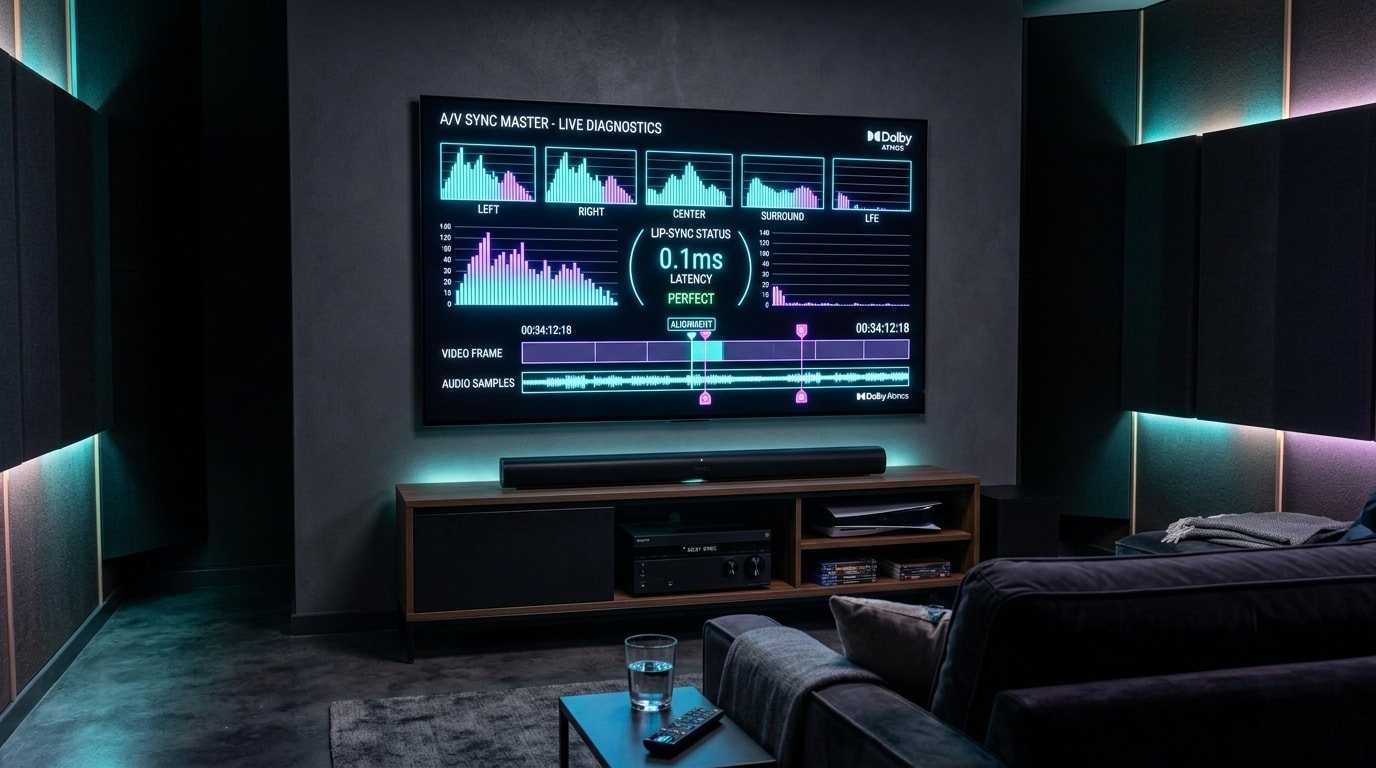
When watching live television, high-octane sports, or cinematic on-demand movies through Internet Protocol Television (IPTV), few technical issues are as intensely frustrating as a timing discrepancy between picture and sound. You settle in to watch an interview or breaking news report, but the words spoken by the presenter do not match the movement of their lips. Or worse, during a championship football or basketball broadcast, you hear the referee's whistle or the roar of the arena crowd a split second before the physical action appears on screen.
When IPTV audio and video are out of sync, it completely shatters viewing immersion. This annoying phenomenon is technically known as an audio-video synchronization offset, temporal drift, or lip-sync delay. Unlike stream buffering, spinning wheels, or pixelated macroblocking—which are directly tied to internet throughput problems—an audio synchronization issue frequently strikes even when your broadband connection is blazing fast and the video feed is streaming smoothly in uncompressed 4K resolution.
When facing an IPTV lip sync problem, subscribers often assume that their streaming service provider is malfunctioning or that their broadband bandwidth is inadequate. However, live IP media streaming relies on distinct video and audio decoding pipelines, display processing engines, digital audio transport protocols, and hardware decoders—each of which can introduce microsecond timing delays.
In this comprehensive technical manual, we break down what causes an IPTV audio delay, explain the crucial diagnostic difference between audio arriving ahead of picture versus audio lagging behind picture, outline a foolproof testing workflow to isolate the bottleneck, and provide twelve proven step-by-step solutions to fix lip-sync delays across Smart TVs, Amazon Firesticks, Android TV hardware, external soundbars, AV receivers, and Bluetooth devices using Trimix IPTV and our subscription packages.
What Is Audio-Video Synchronization and How Does the Digital Pipeline Work?
To understand how to permanently resolve a lip-sync delay, it helps to understand how modern digital media streaming synchronizes audio and video data behind the scenes.
In broadcast engineering, audio-video synchronization (A/V sync) refers to the precise temporal alignment of the soundtrack with its corresponding visual frames. When a live broadcast is captured at a stadium or studio, video and audio are encoded as separate elementary digital bitstreams:
- Video Elementary Stream (VES): Compressed using video codecs such as H.264, HEVC/H.265, or AV1.
- Audio Elementary Stream (AES): Compressed using audio codecs such as AAC, Dolby Digital (AC3), or Dolby Digital Plus (E-AC3).
During broadcast multiplexing, these two distinct bitstreams are chopped into small digital packets and interleaved inside a digital transport container (such as an MPEG-TS or HLS container). Crucially, every media packet is stamped with precise timing markers known as Presentation Time Stamps (PTS) and Decoding Time Stamps (DTS).
When your IPTV media player (such as TiviMate, IPTV Smarters Pro, or XCIPTV) receives this transport stream, its internal media engine executes a multi-stage decoding process:
- Demultiplexing (Demux): The media player parses the incoming container and separates video packets from audio packets.
- Buffering: Packets are held in temporary RAM buffers to protect against transient network jitter.
- Hardware Video Decoding: Video packets are dispatched to the television or streaming stick's GPU/VPU hardware decoding chip to be rendered into visual display frames.
- Audio Decoding & Passthrough: Audio packets are decoded by the audio processor (or passed directly to an external soundbar over HDMI eARC).
- Presentation Synchronization: The media player's internal master clock compares the PTS timestamps of the outgoing audio and video frames, releasing them simultaneously to your display panel and speakers.
When any component along this five-stage pipeline introduces an uncompensated delay, an audio-video synchronization offset occurs. Broadcast research standards published by the International Telecommunication Union (ITU-R BT.1359) indicate that human perception is extraordinarily sensitive to timing mismatches:
- Audio Lead (Audio Ahead of Video): Becomes noticeably distracting if audio arrives more than 15 to 20 milliseconds (ms) ahead of the video frame.
- Audio Lag (Audio Behind Video): Becomes noticeable if audio arrives more than 40 to 45 milliseconds (ms) behind the video frame.
Audio Ahead of Video vs. Audio Behind Video: The Two Critical Scenarios
Diagnosing your specific lip-sync condition requires identifying the exact direction of the temporal offset. Your playback issue will fall into one of two distinct categories:
| Parameter | Audio Ahead of Video (Audio Lead) | Audio Behind Video (Audio Lag) |
|---|---|---|
| Perceptual Symptom | You hear dialogue or sound effects before seeing the physical mouth or action move on screen. | You see the actor speak or ball kick first; sound follows a fraction of a second later. |
| Typical Root Causes | Smart TV picture processing engines, motion interpolation, video decoder thermal throttling. | Wireless Bluetooth latency, soundbar digital processing, HDMI ARC handshakes, audio buffer bloat. |
| Typical Delay Range | +80 ms to +250 ms video delay | +100 ms to +300 ms audio delay |
| Immediate Diagnostic Step | Switch TV Picture Mode to Game Mode or turn off Motion Smoothing. | Disconnect Bluetooth or test internal TV speakers. |
| Player Offset Correction | Apply Positive Audio Delay (delays sound to wait for video). | Apply Negative Audio Delay (advances sound ahead of video). |
Identifying whether sound arrives early or late is the most critical diagnostic step, because applying positive audio delay to a system already suffering from audio lag will double the desynchronization!
7 Core Technical Causes of IPTV Audio and Video Desynchronization
Because live internet protocol television delivers separate video and audio streams over high-speed networks, timing slips can be introduced at multiple hardware and software junctures:
1. Smart TV Picture Processing Engines (The #1 Cause of Audio Lead)
Modern 4K OLED, QLED, and Mini-LED Smart TVs from Samsung, LG, Sony, and TCL are equipped with powerful visual enhancement coprocessors. Features such as:
- Motion Interpolation / Motion Smoothing (TruMotion, Auto Motion Plus, Motionflow)
- AI Upscaling & Super Resolution Processing
- Digital Noise Reduction & Dynamic Contrast Optimization
These image enhancement algorithms analyze incoming video frames, generate artificial intermediate frames, and reconstruct pixels before sending the frame to the physical display panel. This extensive visual pipeline introduces a display delay of 100 ms to 250 ms.
Because televisions pass audio directly to the internal speakers or external soundbar without complex processing, audio plays instantly while video is delayed by a quarter of a second—resulting in the classic audio ahead of picture error.
2. Hardware vs. Software Video Decoder Imbalances
Decompressing high-frame-rate 1080p 60fps sports or dense 4K HEVC video requires enormous computational horsepower. In contrast, decoding a stereo or 5.1 surround audio track requires negligible CPU power:
- Hardware Decoding (HW): Offloads video decoding directly to dedicated silicon on your streaming hardware's chip, ensuring near-instantaneous frame generation.
- Software Decoding (SW): Forces the device's main CPU cores to process video frames line-by-line.
If your IPTV player defaults to software video decoding on a budget streaming stick or older Smart TV, the processor quickly maxes out at 100% CPU utilization. As the CPU overheats, video frame rendering slows down, causing the visual stream to drift progressively further behind the audio clock the longer you watch.
3. Bluetooth Audio Transmission Latency
Wireless Bluetooth headphones, earbuds (AirPods, Galaxy Buds), and wireless Bluetooth soundbars are responsible for over 60% of reported audio lagging behind video issues:
- SBC Codec Latency: The standard Bluetooth audio codec introduces 150 ms to 300 ms of wireless transmission and buffering latency.
- AAC Codec Latency: Introduces 100 ms to 220 ms of delay on Smart TVs and Android devices.
- Low-Latency Codecs (aptX LL & LC3): Reduce latency to under 40 ms, but require matching transmitter and receiver chipsets rarely found in standard televisions.
Because Bluetooth latency physically delays sound reaching your ears, audio will always trail visibly behind the action on screen when using standard Bluetooth gear.
4. HDMI ARC/eARC and External Soundbar Handshake Delays
When routing audio from your Smart TV to an external soundbar or AV receiver over an HDMI Audio Return Channel (ARC/eARC) or optical TOSLink cable:
- Digital Signal Processing (DSP) Latency: Modern soundbars perform spatial audio virtualization (Dolby Atmos / DTS Virtual:X) and room acoustic equalization, introducing 30ms to 80ms of audio delay.
- eARC Auto Lip-Sync Communication Failures: While HDMI 2.1 eARC includes an automated lip-sync handshake protocol, if HDMI CEC is disabled or an older HDMI cable is used, the soundbar fails to communicate its processing latency to the TV, breaking automated correction.
5. Audio Format Transcoding (Bitstream vs. PCM Downmixing)
If your IPTV player is configured to output raw multi-channel bitstream audio (Dolby Digital Plus / E-AC3) to a television that does not support native passthrough, the television must transcode or downmix the 5.1 stream into 2.0 Stereo PCM on the fly. This real-time format conversion adds noticeable audio latency.
6. Packet Loss and Stream Buffer Desynchronization
When your home Wi-Fi suffers from micro-drops, radio interference, or packet loss, the IPTV player's buffer manager may drop corrupted video keyframes (I-frames) to keep up with the live broadcast. If the player's internal clock fails to realign the Presentation Time Stamps after recovering from packet loss, audio and video will remain permanently out of lock until the channel is switched. To verify network health, review our guide on IPTV internet speed requirements.
7. Upstream Broadcast Source Misalignment
In roughly 5% of cases, the timing offset originates at the origin broadcaster's satellite uplink or transcode encoder. If an upstream encoder experiences a clock slip, that specific live feed will broadcast with baked-in audio desynchronization. In this scenario, every subscriber watching that specific channel will experience the exact same offset, regardless of their local hardware.
12 Proven Fixes to Eliminate IPTV Audio-Video Desynchronization
Follow this structured troubleshooting sequence to eliminate lip-sync delays and restore frame-perfect audio synchronization:
Fix 1: Force Close and Relaunch the IPTV Player
Over hours of continuous channel zapping, media engines accumulate buffer metadata that can cause the internal presentation clock to drift:
- On Android TV / Fire TV: Go to Settings → Applications → Manage Installed Applications → [Your IPTV App] → Select Force Stop, then relaunch.
- On Samsung Tizen / LG webOS: Exit the application completely, or hold the Back button on your remote for 3 seconds to terminate the background process before reopening.
Fix 2: Power Cycle Streaming Hardware and TV
Clearing volatile system RAM eliminates memory leaks and restores full hardware decoder responsiveness:
- Unplug your Smart TV and streaming media device (Firestick, Apple TV, Android box) from the wall outlet.
- Wait 60 seconds to allow all capacitors to discharge fully.
- Plug the hardware back in and test playback.
Fix 3: Disable TV Motion Smoothing and Frame Interpolation
If audio is arriving ahead of video, disabling Smart TV image post-processing is the most effective single fix:
- Open your television's Settings → Picture Settings → Advanced / Expert Settings.
- Set Motion Smoothing, TruMotion (LG), Auto Motion Plus (Samsung), or Motionflow (Sony) to OFF.
- Turn off Noise Reduction, MPEG Artifact Reduction, and Dynamic Contrast.
- Pro Tip: Switch picture mode to Game Mode or PC Mode. This bypasses virtually all post-processing circuits, slashing video display delay from 150ms down to under 15ms.
Fix 4: Calibrate IPTV Player Audio Delay / Offset Slider
Modern premium IPTV players (such as TiviMate, IPTV Smarters Pro, and XCIPTV) feature integrated millisecond-precision audio delay calibration tools:
- While streaming the affected channel, press OK / Select on your remote to display the on-screen playback HUD.
- Select the Audio Options (or Settings icon) → Locate Audio Delay (or Audio Offset).
- If Audio Arrives Early (Ahead of Video): Increase the audio delay (+50ms, +100ms, +150ms, +200ms) until spoken words align perfectly with lip movement.
- If Audio Arrives Late (Behind Video): Decrease the audio delay into negative values (-50ms, -100ms, -150ms) to advance the audio track.
- Choose whether to apply the calibration to This Channel Only or All Channels.
Fix 5: Switch Video Decoder Mode (Hardware vs. Software)
Switching how your device processes video frames can instantly restore A/V synchronization:
- In your IPTV player settings, navigate to Playback → Decoder.
- Ensure Hardware (HW) or Hardware+ (HW+) is selected for Live TV streams. Hardware decoding guarantees that video rendering is locked to GPU hardware clocks.
- If a specific stream produces a black screen with audio under hardware decoding, toggle that channel to an alternative engine like VLC or ExoPlayer.
Fix 6: Disconnect Bluetooth and Test Wired Audio
If audio is lagging noticeably behind video:
- Disconnect Bluetooth headphones or wireless soundbars.
- Route audio through your TV's Internal Speakers or a physical wired 3.5mm / optical cable.
- If the lip-sync delay disappears instantly, your Bluetooth transmission latency was the sole culprit. If wireless listening is mandatory, invest in Bluetooth 5.3+ headphones that support low-latency codecs (such as aptX Low Latency or LC3).
Fix 7: Configure HDMI eARC and Pass-Through Audio
If routing audio through an external soundbar or AV receiver:
- Open your Smart TV's Sound Settings → Expert / Advanced Settings.
- Set Digital Audio Output to Pass-Through or Bitstream instead of Auto or PCM. This allows your soundbar to decode the native audio stream directly without television downmixing latency.
- Ensure eARC Support is set to ON or Auto.
- Check if your television has an eARC Lip-Sync Correction toggle and verify it is enabled.
Fix 8: Calibrate TV and Soundbar Built-In AV Sync Controls
Most modern televisions and soundbars feature built-in audio synchronization sliders:
- Samsung Smart TV: Navigate to Settings → Sound → Expert Settings → Digital Output Audio Delay and adjust the slider between 0ms and 250ms.
- LG Smart TV: Go to Settings → Sound → Advanced Settings → Match Screen and Sound → Adjust AV Sync Adjustment slider.
- Soundbar Remote: Many soundbars (Sonos, Bose, Samsung, Sony) include an Audio Sync / Delay button directly on their physical remote control or mobile companion app.
Fix 9: Set Fire OS Surround Sound to Stereo PCM
If using an Amazon Fire TV Stick connected directly to a Smart TV:
- Open Fire OS Settings → Display & Audio → Audio → Surround Sound.
- Switch from Best Available to PCM.
- Next, navigate to Settings → Display & Audio → Audio → Audio Visual Sync. Use the interactive bouncing ball tool to calibrate Fire OS system-level audio timing. For comprehensive Firestick advice, consult our device installation directory.
Fix 10: Clear Application Cache Files
Over time, corrupt cache records can cause media engines to miscalculate PTS presentation clocks:
- Go to your device's Application Manager → Select your IPTV app → Click Clear Cache.
- Warning: Do not click "Clear Data" unless you are prepared to re-enter your subscription credentials.
Fix 11: Switch Between HTTP and HLS / MPEG-TS Stream Formats
Certain IPTV players handle stream containers differently:
- In your IPTV player settings, check if your provider allows toggling stream output formats between MPEG-TS and HLS (.m3u8).
- HLS streams handle network packet drops more gracefully by dynamically adjusting segment buffers, preventing the audio clock drift common in raw transport streams.
Fix 12: Verify If the Delay Is Channel-Specific
If you perform diagnostic testing and discover that 95% of channels play with razor-sharp lip-sync accuracy, while only one specific regional broadcast feed is out of sync, the issue is strictly upstream. Avoid altering your global television settings, and report the channel feed to our 24/7 Trimix IPTV support team so our engineers can re-synchronize the source transcoders.
HDMI eARC vs. Optical TOSLink vs. Bluetooth: Audio Pipeline Benchmarks
The physical cable or wireless connection linking your television to your speakers dictates the fundamental audio processing delay. The table below compares the four primary audio transport methods:
| Connection Type | Maximum Audio Bandwidth | Supported Audio Codecs | Typical Latency | Automated Lip-Sync Compensation | Best Use Case |
|---|---|---|---|---|---|
| HDMI 2.1 eARC | ~37 Mbps | Dolby Atmos, TrueHD, DTS:X, 7.1 Uncompressed LPCM | < 5 ms | Yes (Mandatory Hardware Protocol) | Premium home theater soundbars & AV receivers |
| Legacy HDMI ARC | ~1 Mbps | Dolby Digital (AC3), DTS 5.1, Stereo PCM | 10 – 30 ms | Optional (Often unreliable) | Standard soundbars on older televisions |
| Optical TOSLink (SPDIF) | ~384 Kbps | Dolby Digital 5.1, Stereo PCM 2.0 | 15 – 45 ms | No (Strictly one-way broadcast) | Legacy audio receivers without HDMI ports |
| Bluetooth 5.0 – 5.3 (SBC) | ~328 Kbps | Stereo 2.0 SBC / AAC | 150 – 250 ms | No (Requires manual player offset) | Casual listening; avoid for live sports & movies |
Audio Bitstream Passthrough vs. PCM Stereo Downmixing
Understanding how audio data is decoded within your playback chain helps eliminate persistent timing drift:
1. Bitstream Passthrough
- How It Works: The IPTV player takes compressed Dolby Digital or AAC audio packets directly from the stream and passes them untouched over HDMI to your external soundbar or AV receiver.
- Advantage: Enables full 5.1 surround sound and object-based Dolby Atmos audio.
- Timing Consideration: If your soundbar's internal digital signal processor is slow, bitstream decoding can introduce 40ms to 80ms of audio delay.
2. PCM Stereo Downmixing
- How It Works: The IPTV player or Smart TV decodes the compressed audio bitstream internally, converting it into uncompressed two-channel Linear PCM before sending it to the speakers.
- Advantage: Decoding is instantaneous, placing zero processing burden on external speakers.
Brand-Specific Lip-Sync Calibration Walkthroughs
Because television operating systems implement distinct audio routing layers, applying systemic timing compensation requires navigating brand-specific configuration menus:
1. Samsung Smart TVs (Tizen OS 2018–2026)
Samsung televisions feature a dedicated digital output audio delay slider designed specifically to balance image processing lag with external optical and HDMI ARC soundbars:
- Press the Home button on your Samsung OneRemote and navigate to Settings → All Settings.
- Select the Sound tab and choose Expert Settings.
- Locate Digital Output Audio Delay:
- The default value is typically set to 100 ms.
- If your audio is arriving behind the picture, lower this value toward 0 ms.
- If your audio is arriving ahead of the picture (very common when Picture Clarity / Auto Motion Plus is enabled), increase this value toward 150 ms to 200 ms.
- Set HDMI-eARC Mode to Auto.
- Set Digital Output Audio Format to Pass-Through (if supported by your external receiver) or PCM if sync errors persist.
2. LG Smart TVs (webOS 4.5–24)
LG webOS provides one of the most sophisticated audio synchronization engines available on modern smart televisions:
- Press the Settings (Gear) button on your LG Magic Remote and select All Settings.
- Navigate to Sound → Advanced Settings.
- Select Match Screen and Sound:
- If using external optical or HDMI ARC speakers, toggle the setting to ON.
- Use the slider to nudge audio forward or backward: slide toward the minus (-) sign if audio is lagging behind video, or toward the plus (+) sign if audio is playing too early.
- The Bypass Mode Alternative: Enable Bypass Mode. This commands the television to output audio signals immediately without any internal TV processing delay, allowing low-latency soundbars to synchronize directly with the raw broadcast stream.
- Verify that Select HDMI Input Audio Format is set to Bitstream, and Digital Sound Output is set to Pass Through.
3. Sony Bravia Google TVs (XR Cognitive Processors)
Sony Bravia televisions utilize advanced cognitive picture processors that perform real-time focal point enhancement, which can introduce up to 180ms of visual display delay if uncalibrated:
- Press the Quick Settings button on your Sony remote and select Settings.
- Navigate to Display & Sound → Audio Output.
- Locate A/V Sync:
- Set A/V Sync to Auto. In Auto mode, Sony televisions query compatible soundbars over HDMI CEC to dynamically calculate and match video rendering frames to soundbar output.
- If using legacy optical or non-Sony soundbars where Auto mode fails, switch A/V Sync to On to engage a fixed 120ms video hold buffer.
- Set eARC Mode to Auto and Digital Audio Out to Prioritize Pass Through.
4. Apple TV 4K: Wireless Audio Sync Calibration
The Apple TV 4K includes a revolutionary automated acoustic calibration tool that uses your iPhone's external microphone to measure television display latency:
- Ensure your Apple TV 4K is connected to the same Wi-Fi network as an iPhone running modern iOS.
- On your Apple TV, open Settings → Video and Audio.
- Scroll down to the Calibration section and select Wireless Audio Sync.
- A notification will appear on your iPhone screen. Tap Continue.
- Hold your iPhone screen facing your television display approximately two inches away from the center of the screen.
- The television will play a series of rhythmic acoustic audio tones while flashing geometric light pulses on the screen. The iPhone's microphone listens to the sound waves while its camera detects the light pulses, calculating the exact millisecond delay between the Apple TV's HDMI output, the television's visual rendering, and the speaker output.
- Once calibrated, the Apple TV automatically applies a global microsecond timing offset across all applications, including IPTV players.
5. Amazon Fire TV Stick 4K Max & Fire TV Cube
Amazon Fire OS provides an interactive visual bouncing-ball tool to calibrate system-level audio timing:
- From the Fire TV home screen, open Settings → Display & Audio → Audio.
- Select Audio Visual Sync.
- A continuous bouncing ball animation will appear alongside rhythmic chime tones. If the ball strikes the center target plate before or after the chime sounds, use the left and right directional buttons on your Firestick remote to advance or delay the audio track until the chime strikes exactly when the ball hits the center line.
- Press the Play/Pause button to save your calibration profile.
Soundbar Troubleshooting: Sonos, Bose, Samsung Q-Symphony & Sony HT-A7000
If your Smart TV is properly calibrated but lip-sync delays persist, the internal Digital Signal Processing (DSP) architecture of your soundbar may require dedicated adjustment:
1. Sonos Arc, Beam (Gen 2), and Ray
Sonos soundbars communicate over Wi-Fi and HDMI eARC, utilizing extensive multi-room audio buffers that can introduce slight processing delays:
- Open the Sonos App on your iOS or Android smartphone.
- Navigate to Settings (Gear icon) → System → Select your Home Theater Room (e.g., Living Room).
- Scroll down to the Home Theater section and select TV Dialog Sync.
- Use the slider (ranging from 0 to +5) to delay the audio track if dialogue is playing ahead of the television picture.
2. Bose Smart Ultra Soundbar, Soundbar 900 & 600
Bose soundbars incorporate proprietary TrueSpace spatial audio processing that upmixes stereo and 5.1 feeds into overhead height channels:
- Open the Bose Music App on your mobile device.
- Select your soundbar → Tap the Audio button.
- Select AV Sync and adjust the slider between 0ms and 250ms to eliminate soundbar rendering latency.
3. Samsung Q-Symphony Configurations
When combining a Samsung Neo QLED or OLED television with a compatible Samsung Q-Series soundbar, the Q-Symphony feature plays sound simultaneously through both the television's top-firing speakers and the soundbar drivers:
- If acoustic echo or comb-filtering occurs (where dialogue sounds hollow or repeated like an echo chamber), the television speaker driver is out of phase with the soundbar.
- Disable Q-Symphony in TV Sound Output settings and select Soundbar (HDMI) exclusively to verify if the dual-playback engine was causing timing desynchronization.
Understanding Clock Drift: Why Audio Desync Worsens Over 3 to 4 Hours
Many IPTV subscribers report a perplexing phenomenon: a live sports broadcast or movie channel starts with flawless lip-sync timing, but after watching continuously for two or three hours, dialogue gradually falls noticeably out of sync.
This frustrating issue is technically known as Presentation Time Stamp (PTS) Clock Drift.
Why Clock Drift Happens in Live Protocol Streaming
In digital broadcast engineering, television broadcasts rely on two independent hardware clock generators:
- The Origin Video Encoder Clock (PCR - Program Clock Reference)
- The Receiving Device Hardware Audio Clock (I2S Audio DAC)
Even minor differences between the frequency of the broadcast encoder's oscillator and your streaming stick's internal clock crystal (e.g., 48,000.1 Hz vs 47,999.8 Hz) will cause audio samples and video frames to slowly slip out of alignment over continuous playback. Over three hours of uninterrupted streaming, a minuscule 0.01% clock discrepancy accumulates into an easily perceptible 150ms to 200ms audio-video gap.
How to Prevent and Resolve Long-Session Clock Drift
- Periodic Channel Refresh: Simply switching to an adjacent channel and switching back (or pressing the Reload Stream button on your remote) flushes the player's internal memory buffer and resets the master Presentation Time Stamp clock to zero.
- Switch from MPEG-TS to HLS Streams: In your provider portal or application settings, configure your account to stream via HTTP Live Streaming (HLS / .m3u8) rather than raw Transport Streams (MPEG-TS). HLS breaks live broadcasts into discrete 2-to-6-second media chunks, automatically re-synchronizing audio and video clocks at the boundary of every single segment.
- Enable Frame Drop Synchronization in TiviMate: Inside TiviMate, navigate to Settings → Playback → Video → A/V Sync Method and select Drop Frames. This instructs the player to discard microscopic fractions of video frames if the video clock begins to trail behind the audio master clock, preventing cumulative drift during marathon sports viewing sessions.
For optimal application configuration and hardware pairing across different television models, consult our in-depth guide on the best IPTV players for Smart TV.
Stream 2026 NFL & Sports in 4K & 60FPS
Get instant access to over 50,000 live sports channels, 120,000+ movies & series, and 24/7 priority sports coverage with Trimix IPTV across all your favorite devices.